Think about how most of your clients found you. Chances are, a lot of them typed your name (or “marketing coach near me,” or “plumber in Georgetown”) into Google first. They looked at your profile, read a few reviews, and then decided whether to reach out.
Now Google has made that next step a little easier. Your Google Business Profile can now include a Facebook Messenger link, so people who find you on Google Search or Google Maps can start a chat with you in Messenger with one tap.
What changed
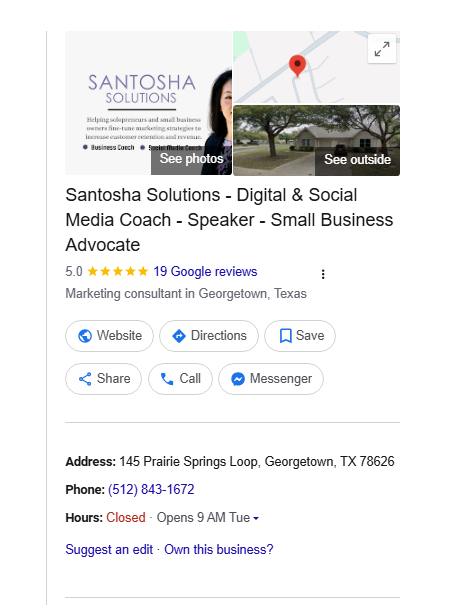
Google Business Profile now lets you add Facebook Messenger as a chat option. When it’s set up, a Messenger button shows up on your profile right next to Website, Directions, and Call. Some business owners received an email from Google saying Messenger had already been added for them. Either way, you can now add it, check it, or change it yourself in the Chat section when you edit your profile.
Here’s what it looks like on my own profile. See the Messenger button in the second row?
Why this matters for small business owners
Google is often your first impression. Before someone visits your website or follows you on social media, they usually see your Google Business Profile. Anything that makes it easier to connect from that spot is worth a few minutes of your time.
A quick question is how many relationships begin. Not everyone is ready to pick up the phone or fill out a contact form. A simple “Hi, can I ask you something?” feels low pressure. Messenger gives people an easy, familiar way to say hello.
You meet people where they already are. Many of your customers use Messenger every day with friends and family. If Messenger is already where you answer people, this puts that easy first step right where they’re looking for you.
A fuller profile builds trust. A profile with a phone number, website, hours, reviews, and a way to message you looks active and cared for. That tells people there’s a real, responsive person behind the business.
One important caution: only turn this on if it points to an inbox you actually check. A message that sits unanswered for days says more about your business than any tagline ever could. If you set it up, plan to respond within a business day (sooner is even better).
Step 1: Find your Facebook Messenger link
Your Messenger link is short and simple. It’s m.me/ followed by your Facebook Page username. For example, mine is m.me/SantoshaSolutions.
Here’s how to find your Page username:
- Log in to Facebook and switch to your business Page (click your profile picture in the top right, then choose your Page).
- Look at the address bar in your browser. Your Page address will look like facebook.com/YourPageName. The part after the slash is your username.
- Don’t see a name there, just a long string of numbers? Go to Settings & privacy, then Settings, then Page setup, and look for Username. You can create one there if you haven’t yet.
- Put it together: m.me/ plus your username. If your Page is facebook.com/SunnysideBakery, your Messenger link is m.me/SunnysideBakery.
- Test it. Paste the link into your browser (or text it to yourself and tap it on your phone). It should open a Messenger conversation with your business Page. If it does, you’re ready.
Tip: Make sure messaging is turned on for your Page. If people can’t send your Page a message on Facebook, the link won’t work on Google either.
Step 2: Add Messenger to your Google Business Profile
- Make sure you’re signed in to the Google account that manages your Business Profile.
- Search for your business name on Google. Your profile tools will appear at the top of the results.
- Click Edit profile, then choose Business information if you’re asked.
- Click the Contact tab and scroll down to the Chat section.
- Check whether Messenger is already there. If Google added it for you, confirm that the link points to the right Facebook Page.
- If it’s not there, open the Primary chat drop-down and choose Messenger.
- In the Facebook Messenger URL box, paste your link (for example, m.me/YourPageName).
- Click Save.
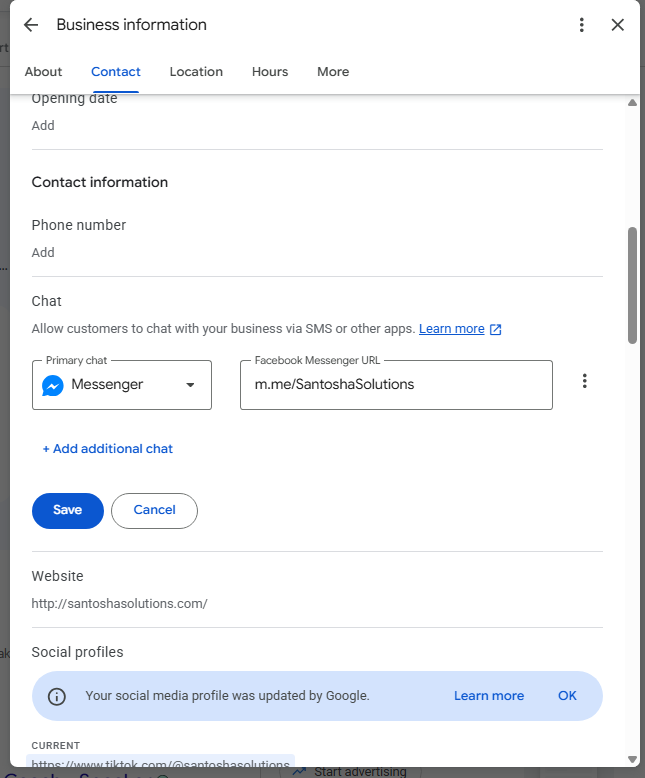
Google may take a little while to review the change before the Messenger button appears on your public profile, so don’t worry if you don’t see it right away.
Step 3: Send yourself a test message
Once the button shows up, look up your business on Google from your phone, tap Messenger, and send a quick test message. Then check where it lands. Does it show up in your Facebook Page inbox or Meta Business Suite? Do you get a notification? Knowing exactly how messages arrive is what keeps them from slipping through the cracks.
Try this this week
- Find your Messenger link and test it.
- Open your Google Business Profile and check the Chat section. See whether Messenger was added for you.
- Make sure it connects to the right Facebook Page.
- Send yourself a test message and turn on notifications so you never miss a new conversation.
Small updates like this don’t take long, but they make it easier for the right people to reach you. And being easy to reach is a big part of being chosen.
Source: Search Engine Roundtable

Hi! I’m Carolyn. I work with solopreneurs and small business owners to clarify their message and grow their business through digital marketing and social media coaching. If you’re ready to connect with your ideal audience and build a business that supports a life you love, let’s talk.